
Users, roles and access#
Open Users and roles in the Company section. Users, Roles and Share my details are tabs in one area, rather than separate sidebar entries. Only tabs your account can access are shown.
Add space for additional users#
Open Subscription and review user capacity before inviting someone. Adding a user place does not invite a person or create an account. Review the price before confirming a capacity change.
Invite a user#
- Open Users and roles → Users.
- Select Invite driver.
- Enter the person's details and choose the available role/options.
- Send or share the invitation through the offered action.
- Ask the person to open the invitation and create their own account if they do not already have one.
An invitation links the newly created account to the owner automatically. Pending invitations can be reopened so you can share the link again.
Create a role#
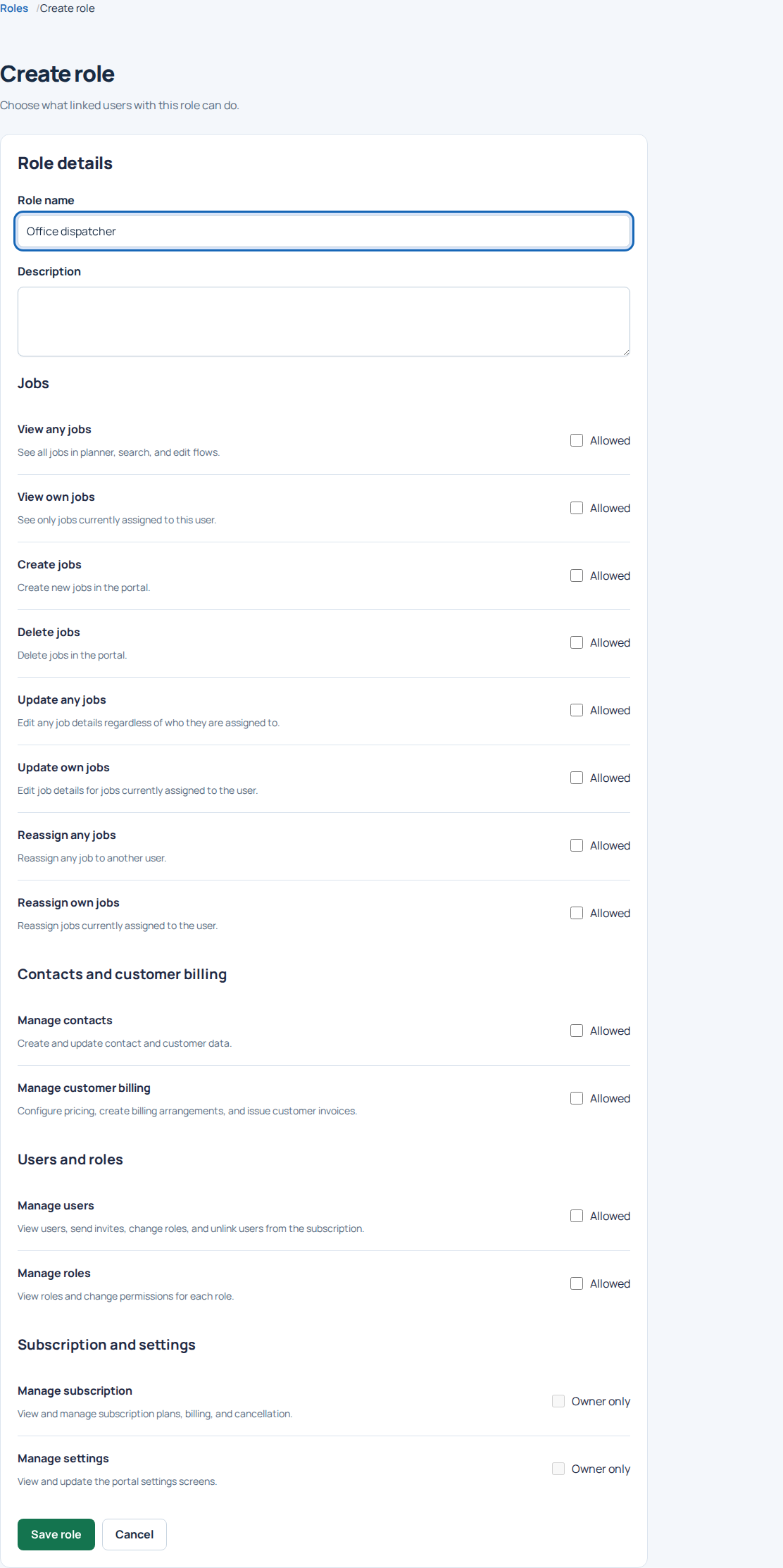
Open the Roles tab and select New role. Use a clear name such as Driver or Office administrator, then choose only the permissions needed and save.
Permissions govern jobs, contacts, settings, subscriptions, users, roles and customer billing. Ownership and administrative settings should be limited to trusted colleagues.
Assign or change a user's role#
On Users, choose the role for the person. The account owner’s role is protected. The selector shows Saving role… while the change is being confirmed, then Role saved. on success. If the save or refresh fails, follow the displayed recovery message rather than assuming it worked.
Changing a role definition affects everyone assigned to that role. Create a separate role if one person needs different access.
Understand restricted access#
Users see only permitted navigation and actions, and direct routes are checked too. If an action is missing, confirm the person is linked to the correct business and has the appropriate role. Sign out/in again if access has not yet refreshed.
A colleague who can view their own jobs may have a different Home reporting scope from an owner or someone allowed to view company jobs.
Share your details to join another account#
The Share my details tab provides the owner's 10-character share code. Owners can also find it through Sub Users in the app. Share it only with the intended person and refresh it if exposed.
The person joining first creates/signs into their own account, then opens Account → Link to parent account in the app and enters the code exactly. Job assignment should follow the correct account linking.