
Planner and scheduling#
Open Planner to review assignments and planned collection/delivery times. Select Create job at the top when you want to create a movement without choosing a time slot first.
Read the desktop planner#
Use the date field or previous/next buttons to choose the day. The drivers icon controls visible drivers; the preferences icon opens planner options. Both retain accessible names/tooltips.
The timeline has one header row of hours. Drivers appear down the left. Select a job to open its record; the breadcrumb can return you to the same planner date.
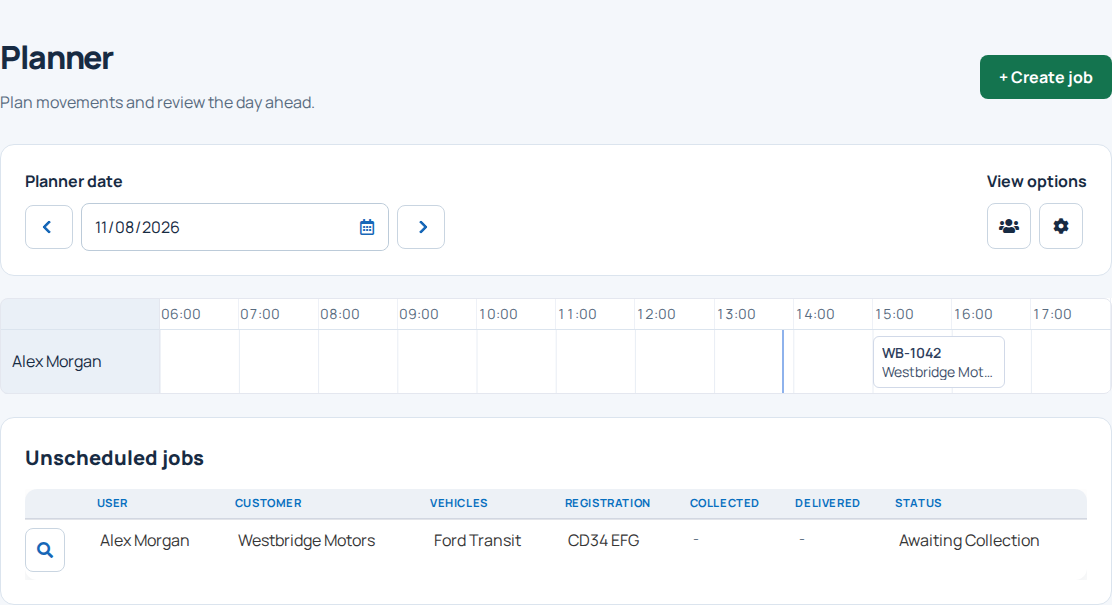
If a job is missing, check its date, assigned user and selected drivers before creating another job.
Quick-add a job#
On desktop, hover over the appropriate driver/time in the timeline and use the add action. It opens Create job with that scheduling context filled in. Review the inherited date and assigned user before saving.
You can use the applicable Billing options just as in ordinary job creation. A job saved with a failed billing draft should be retried through the billing recovery action, not recreated.
Find unscheduled jobs#
Desktop includes Unscheduled jobs below the timeline. Work created directly in the app commonly appears here because the app's job-creation flow does not set collection/delivery dates.
Open the job, enter its schedule and check assignment. The mobile browser planner intentionally omits the unscheduled list; use desktop to review that list.
Use the mobile browser planner#
On a phone, choose the day and driver in the compact controls. Use the date field and previous/next controls to move between dates or drivers. Preferences remain available.
The day timeline shows exact times, including overlapping jobs. Select a job to open it. When permitted, select an available time slot to start a job with that time/driver; you can also open Jobs and use Create job.
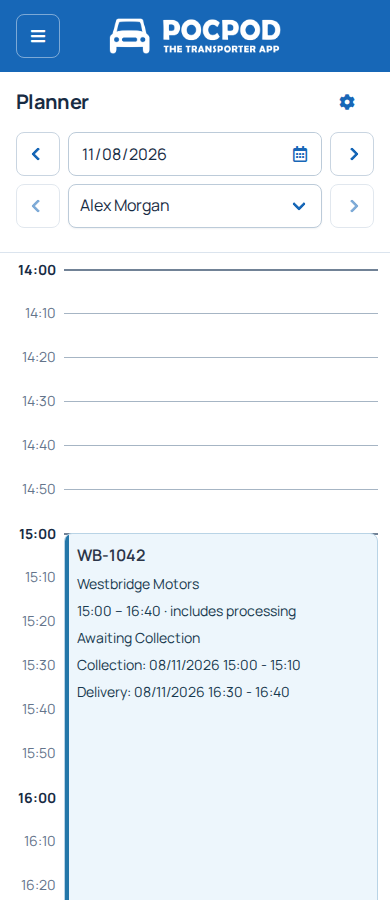
Returning from a job preserves the relevant planner context. This browser planner is separate from the Planner inside the Pocpod app.
Open reports and job details#
Open the job to review collection/delivery information. Where an unscheduled proof-backed job offers a report action, use it to preview the corresponding report.
If a report is missing, confirm that the driver completed the relevant proof and that the app has uploaded it. Do not repeat the physical proof simply because it has not appeared yet.
Use the app planner#
Choose Planner in the app menu, move through dates and open the assigned work. The app focuses on the signed-in person's operational work; use the portal for broader scheduling according to your permissions.