
Set up your business#
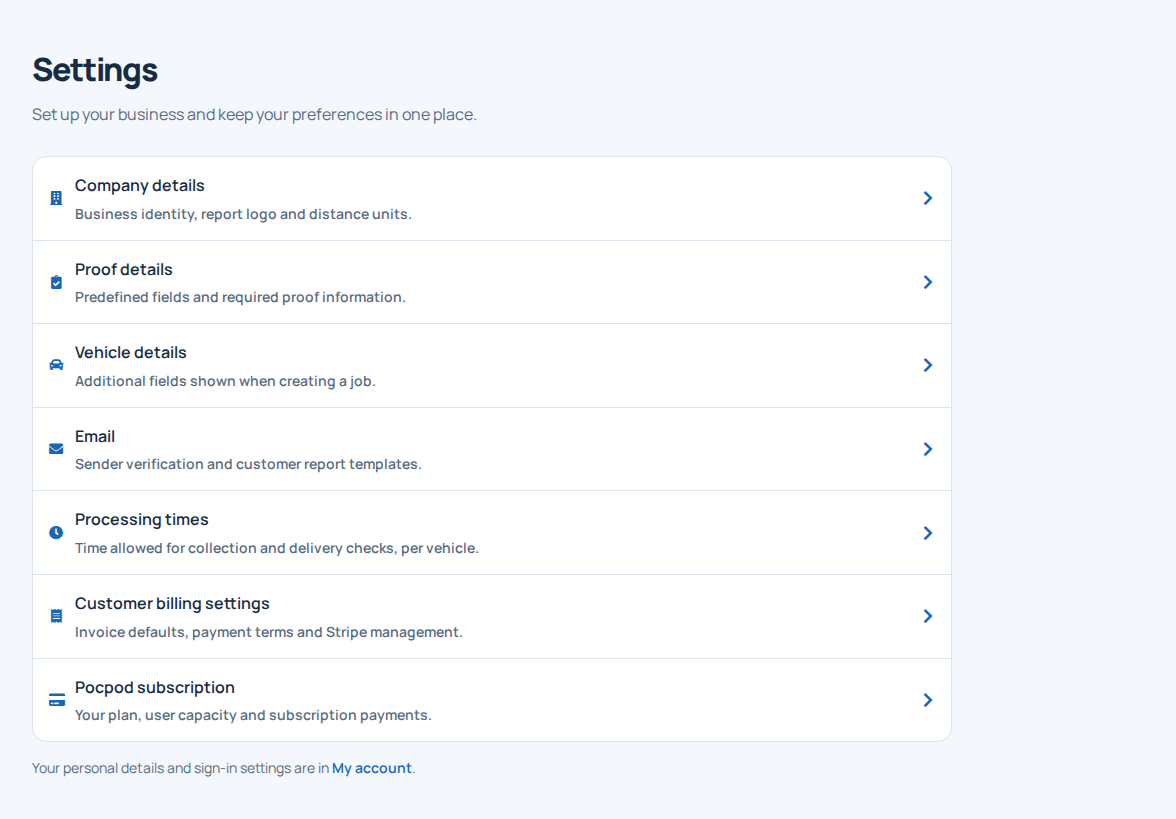
Open Settings in the Company part of the sidebar. The overview shows the destinations your account can use. On desktop, settings pages also have tabs; on a phone, use the Settings page selector rather than a long row of tabs.
Add company details#
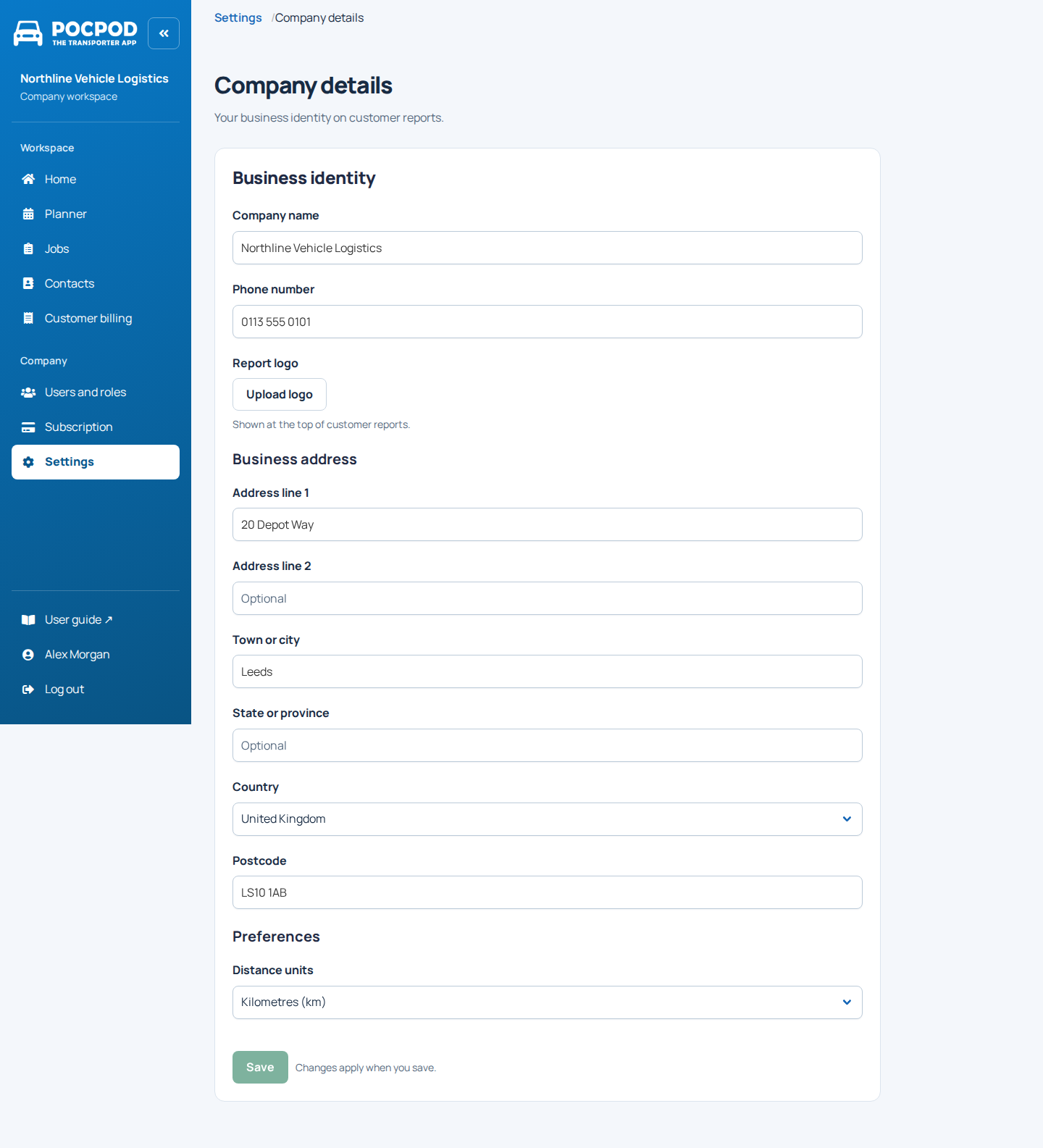
Choose Company details. Enter the business name, contact details, address, report logo and distance units. Save changes before leaving.
These are shared business details used by your workflows and customer-facing output. Your personal account is separate: open your name at the bottom of the sidebar to edit My account.
Configure vehicle details#
Choose Settings → Vehicle details to enable additional vehicle fields, such as VIN, colour or fuel information. Select which fields your operation needs and which are required where that option is available.
Request information your drivers can reliably collect. The app and job form use the company's enabled fields; a required detail must be supplied before the relevant proof step can finish.
Configure proof details#
Choose Settings → Proof details. Select from the predefined optional proof fields and mark selected fields required when needed. You cannot create or rename field definitions.
If a required field is unavailable, request it through contact@moon15.co.uk. These settings control the additional details captured in the app.
Customise report emails#
Choose Settings → Email. Review sender details, domain verification and the subject/message templates offered by your account. Add verification records with your domain provider when requested, verify the sender and save the template.
Until a custom sender is verified, Pocpod can use its default sending identity. Check a report sent to an address you control before relying on a changed template.
Set processing times#
Choose Settings → Processing times to set the default time allowed for collection and delivery checks per vehicle. A job can have its own processing time when the workflow allows it.
These minutes account for work such as photos and condition checks. They are separate from the driving time between locations.
Configure customer billing#
Choose Settings → Customer billing settings to review currency, distance rate, tax suggestions, payment terms, numbering and final-invoice behaviour. Some controls depend on payment setup and your permissions.
These values are defaults. Check every draft before sending an invoice. See Invoices and payments.
Review your subscription and personal account#
Subscription is a separate Company menu item above Settings. Use it for the Pocpod plan and user capacity, rather than a customer's billing arrangement.
Your name opens My account. Never share a login; invite each colleague instead.
Check settings in the app#
The app has separate device settings. Multi-photo selection and background syncing depend on the device and operating-system controls. Company, vehicle and proof settings remain managed from the portal.
Changes sync automatically when the app has an internet connection. Avoid clearing its storage while work may still be stored locally.